NSFAS Login : How to Access, Fix Errors & Check Your Status
What is the myNSFAS Login Portal?
The myNSFAS login portal is your official access point to everything related to your student financial aid journey. Whether you’re applying for NSFAS funding, uploading documents, checking payment dates, or changing your details — it all starts with logging into your myNSFAS account at:
The portal is designed for all South African citizens who want to apply or manage their NSFAS bursaries and grants.

Why Logging in to NSFAS Matters
Logging into the portal allows you to
- Apply for new NSFAS funding or renew your existing application
- Check your funding status, such as “Provisionally Funded” or “Awaiting Registration”
- Upload and manage required documents like IDs, proof of income, consent forms, and Annexure A
- Sign your bursary agreement — a contractual requirement before any funds can be released
- Update personal and banking details, which is crucial for receiving payments
- Download confirmation documents or status summaries
- Receive official NSFAS communications, including document requests and appeals updates
A missed login could mean missed funding or status updates — that’s why mastering the NSFAS login process is crucial.
Why It Matters
Without logging in, you won’t be able to:
- Begin your funding application
- Upload required documents (like your ID or your parents’)
- Sign the bursary agreement to initiate payments
- Monitor your payment progress or resolve account issues
Major Reasons You Need to Log In
- Access your NSFAS application status
From “Submitted” to “Fully Funded,” every stage is tracked in your account. - Submit or replace missing documents
NSFAS often flags issues or missing forms—login allows for fast resolution. - Sign legally binding bursary/loan agreements
No signature = no money. Immediate action is crucial once this appears. - Update contact and banking info
Incorrect details result in payment delays or rejections. - Track your payment schedule
Tuition, accommodation, allowances—they all show here. - Receive appeals outcomes
If your application or appeal is unsuccessful, results appear in your account.
How to Create a myNSFAS Account (If You Haven’t Yet)
Before you can log in, you must register.
Here’s how
- Visit www.nsfas.org.za
- Click on myNSFAS
- Select Register
- Provide your:
- South African ID number
- Full name
- Email address
- Mobile number
- Choose a secure password
- Check the consent box
- Submit and verify your email/phone via OTP
Verification
- You’ll get a 6-digit OTP via SMS or email
- Enter the OTP to verify your account
Tip: Make sure you use a personal and permanent email you can access later — this is how NSFAS sends alerts.
Step-by-Step: NSFAS Login Process
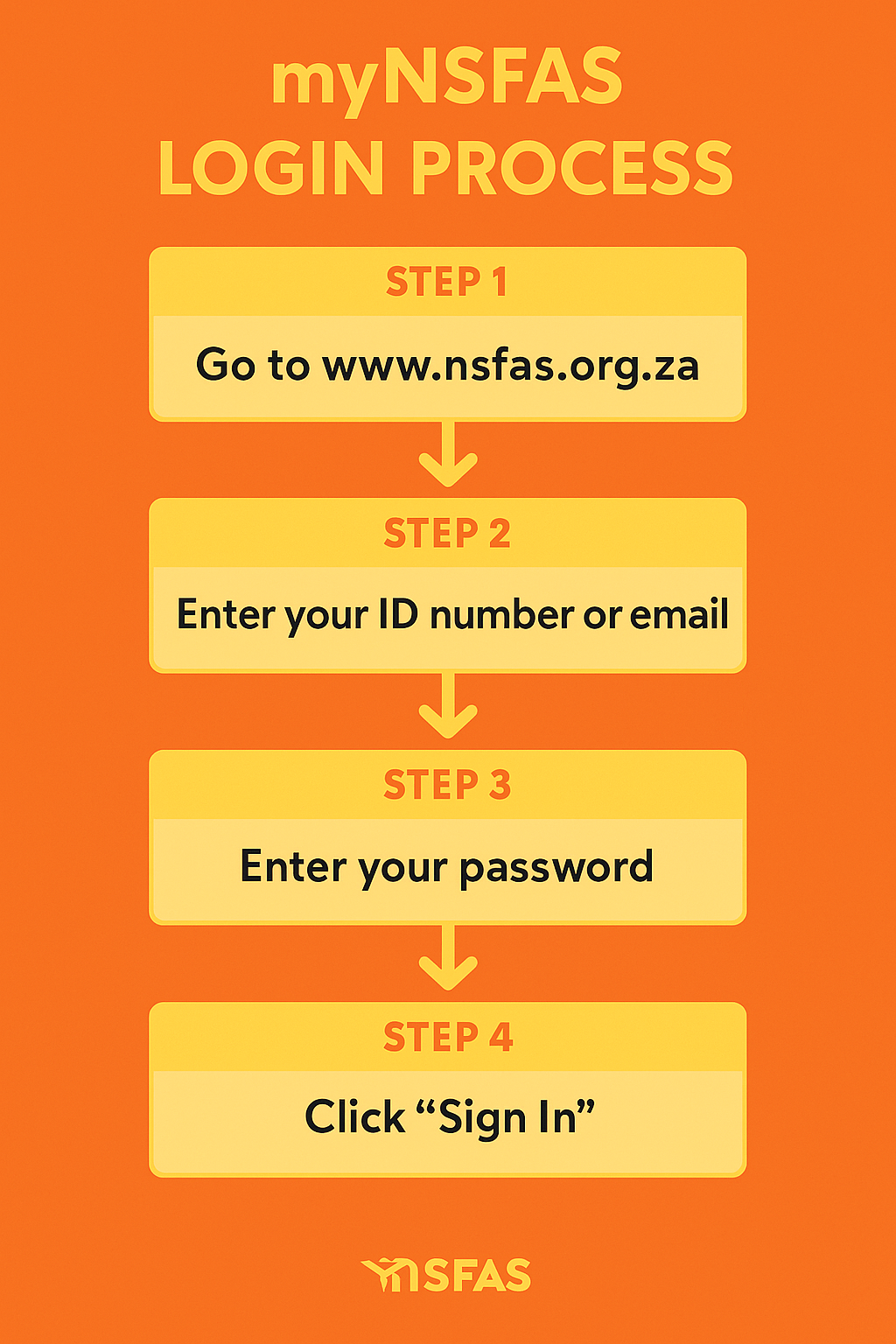
Logging in is simple if your credentials are correct.
Steps
- Go to myNSFAS portal
- Click myNSFAS Login
- Enter your ID number or email
- Enter your password
- Click Sign In
What You Should See
- A welcome dashboard with your name
- Clearly labeled tabs for Application, Documents, Status, Payments, and Messages
- A section called “Track Funding Progress”
Landing Page Tips
- Note that login sessions expire for security — you’ll need to log in again after inactivity
- Bookmark the portal in your browser
- Activate notifications to stay alerted for changes

Forgot Your Password? Here’s How to Reset It
A forgotten password is one of the most common issues.
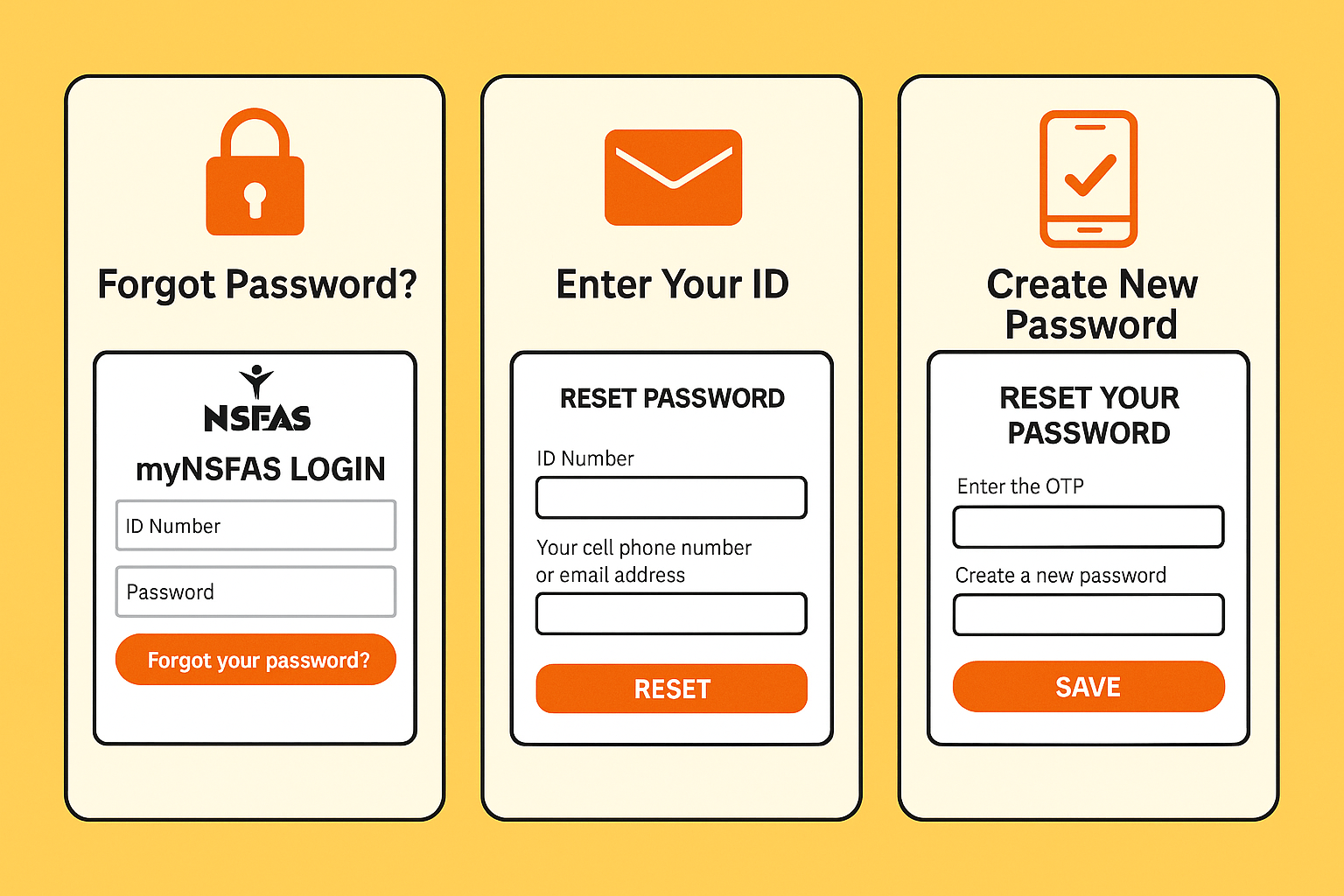
Steps to reset
- Click “Forgot Password” on the login screen
- Enter your ID number and email/phone number
- Choose how you’d like to reset (email or SMS)
- Enter the OTP (one-time pin) sent to your phone/email
- Create a new password
Password Tips
- Use a phrase like “SunnyCapeTown42!” to make it both strong and memorable
- DO NOT write it down in public places or share it
- Consider using a password manager (e.g. Bitwarden, LastPass)
Security Tip: Choose a strong password with a mix of letters, numbers, and symbols.
Common NSFAS Login Problems (And How to Fix Them)
Error Message | What It Means | What To Do |
|---|---|---|
“Invalid credentials” | Wrong ID or password | Double-check and reset password |
“Account locked” | Too many failed attempts | Wait 24 hours or reset |
“403 Forbidden” | Portal server error | Try again later or use WhatsApp |
“Blank screen” | Browser problem | Clear cache or use Chrome/Firefox |
Skipping a password attempt and immediately resetting may lock your account — always follow the “Forgot Password” workflow if unsure.
Portal Not Loading? Here’s Why
It could be
- Too many users at once
- Firewall blocking access (at school or public Wi-Fi)
- NSFAS system maintenance
Fixes
- Switch to Chrome or Firefox
- Use incognito mode if you suspect cache issues
- Flush browser cache or disable VPN/proxy
- Use mobile data if Wi-Fi is blocked
- Contact NSFAS via WhatsApp or helpline for updates
NSFAS Login Errors Explained
Error Code | Explanation | Fix |
|---|---|---|
403 Error | Access denied/server block | Refresh or wait |
404 Error | Page not found | Double-check link |
Session Timeout | You were inactive too long | Log in again |
Portal Down | NSFAS maintenance | Check @myNSFAS Twitter or call NSFAS |
Tip: Always use official links like “https://www.nsfas.org.za” to avoid phishing.
NSFAS Login for TVET vs University Students
Both use the same login portal, but
Category | TVET Students | University Students |
|---|---|---|
Application Windows | More frequent (3x/year) | Once per year |
Documents | Proof of registration required per term | Once at registration |
Course registrations | Multiple per year | Monthly after registration |
Allowance payments | Monthly or trimesterly | Paid monthly |
- TVET students should login every trimester to upload registration and claim allowances
- University students typically login once per academic year but still handle updates and payments
How to Check NSFAS Status After Login
- Log into myNSFAS
- Click Track Funding Progress
- Look at your current application status (e.g., “Provisionally Funded,” “Awaiting Registration”)
How to Upload Documents After Login
- Login to myNSFAS
- Go to “Documents”
- Click “Upload”
- Choose certified files (PDF or JPG under 5 MB)
- Click Submit
Documents You May Need
- Primary ID + parent/spouse ID
- Proof of income (payslips, SASSA letter)
- Signed Consent Form
- Annexure A (for disabilities)
- Proof of registration (TVET or university admission)
How to Update Personal & Banking Details
If your phone, email, or bank account changed, do this:
- Log in to myNSFAS
- Go to “Profile” > “Update Details”
- Submit updated email, phone, or banking info
- Confirm via OTP
NSFAS may delay payment if your bank details are wrong!
Logging in with a Cell Phone or Tablet
Yes, the portal works on phones. Tips:
- Use Chrome or Firefox for Android
- Ensure your phone is updated
- Avoid public Wi-Fi (may block portal)
- Screenshots your status for proof
NSFAS Login via WhatsApp & USSD (No Internet Needed)
- Save +27 78 519 8006
- Type “Hi” > Enter your ID
- It will send your status or funding update
USSD
- Dial 12067327#
- Choose “Check NSFAS Status”
NSFAS Login & Security Tips
To protect your account
- Don’t share your password
- Always log out after checking
- Watch out for fake emails
- Use the official site: nsfas.org.za
Logging in During Peak Periods (January–February Tips)
The beginning of each academic year sees a flood of logins, which can slow down or crash the NSFAS portal.
Tips
- Try logging in early morning (before 8:00 AM) or late evening (after 8:00 PM)
- Use mobile data instead of congested public Wi-Fi
- Avoid submitting during the last 3 days of any deadline
- Monitor Twitter (@myNSFAS) for system updates
What to Do If Your NSFAS Account Is Hacked
With so much personal data involved, you must protect your account. Here’s what to do if you suspect a breach:
- Immediately try to change your password.
- If you can’t log in, contact NSFAS support with:
- Your ID number
- Registered phone/email
- Details of suspicious activity
- Request a temporary lock or reset from NSFAS.
- Update contact details if you regain access.
Security Tip: Never share screenshots or login details via WhatsApp groups or forums.
Syncing myNSFAS With Your University or TVET System
Sometimes funding delays happen because your institution hasn’t sent updated registration data to NSFAS.
To resolve this:
- Log in to your institution’s student portal.
- Make sure your NSFAS-linked student number matches what your university has on file.
- Request a re-submission of your registration to NSFAS if needed.
- Follow up with both NSFAS and your institution’s financial aid office.
Can You Log in Without Internet?
If you’re out of data:
- Use WhatsApp with Wi-Fi
- Use USSD (12067327#)
- Ask a school or NYDA officer to assist
How to Contact NSFAS If You Can’t Log In
- Toll-Free: 08000 67327 (Mon–Fri, 8:30am–5pm)
- Email via myNSFAS contact form
- WhatsApp: +27 78 519 8006
- NYDA or walk-in centres nationwide
Final Thoughts & Action Checklist
Your 7-Point Login Action Plan
- Register your account if you haven’t
- Log in and explore dashboard
- Reset your password if needed
- Upload all required documents
- Update your contact details/bank info
- Track your application status
- Contact support if issues persist